Start with a client profile
Open Clients and choose New client. Enter a name and email address, then add a phone number or internal reference if your workflow needs it.
A form is part of a relationship. Give your team a clearer place to find client details, related contacts, and form requests.
Watch client setup →Log in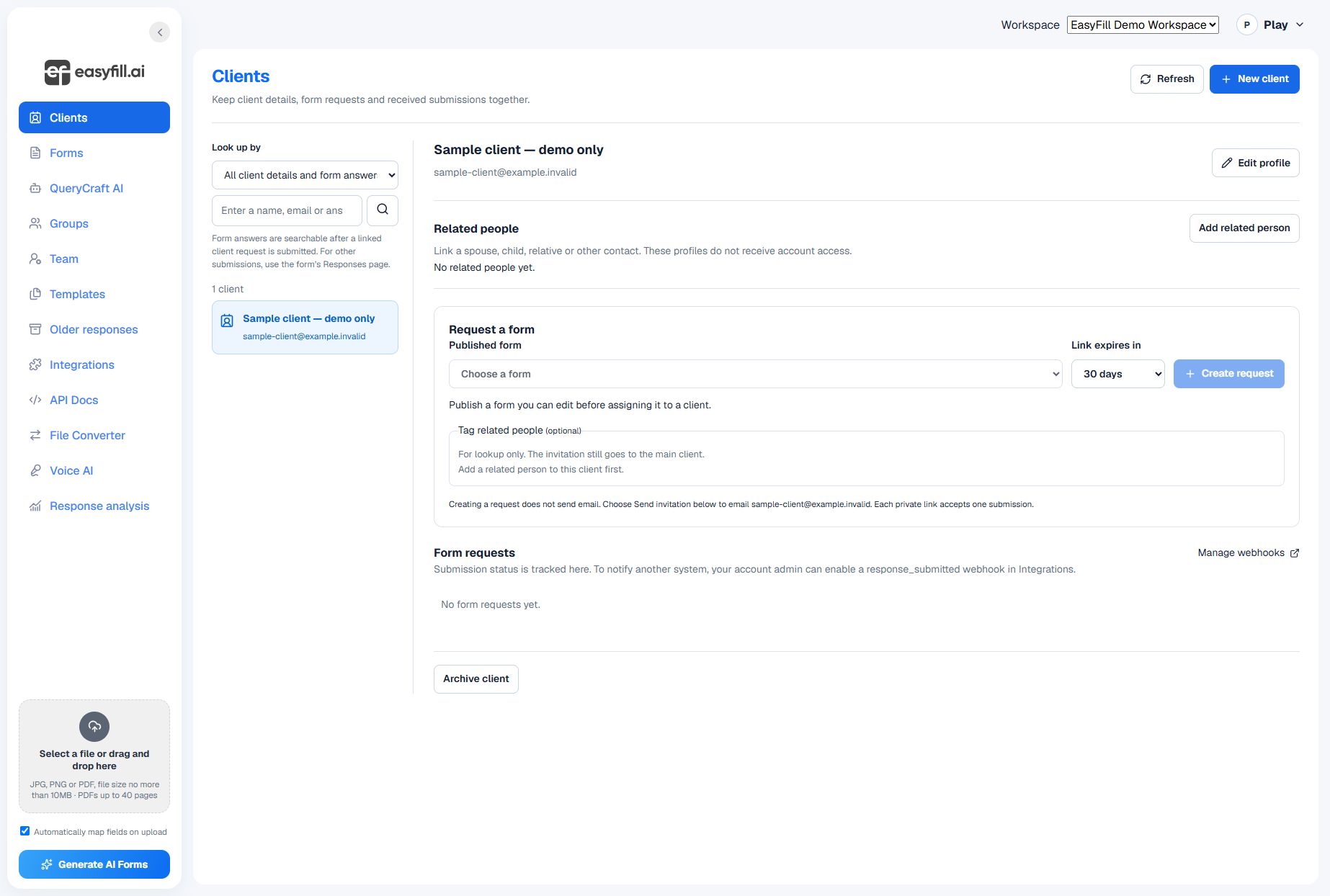
Open Clients and choose New client. Enter a name and email address, then add a phone number or internal reference if your workflow needs it.
Add a child, spouse, relative, or other contact for lookup and organization. A related profile does not automatically receive account access.
Choose a published form from the client profile and create a request. Creating a request and sending an invitation are separate steps, so you can review the destination before emailing it.
Use the available lookup controls to search client details and linked form answers. Use a form’s Responses page for submissions that came through its general link.
Start with a clear question, review the result, and share when you are ready.
Watch client setup →