EasyFill guides / Signatures
How to add signature fields to an EasyFill form
A signature field gives the intended signer a clear place to sign. Add it to your PDF or digital form, identify who should complete it, and check the completed response before publishing.
1. Identify the signer before placing a field
Start with the wording on your document. Label each signature clearly, such as Parent or guardian signature or Applicant signature. Keep staff and director signatures for the staff completion workflow after a client submits.
2. Add a signature field in the editor
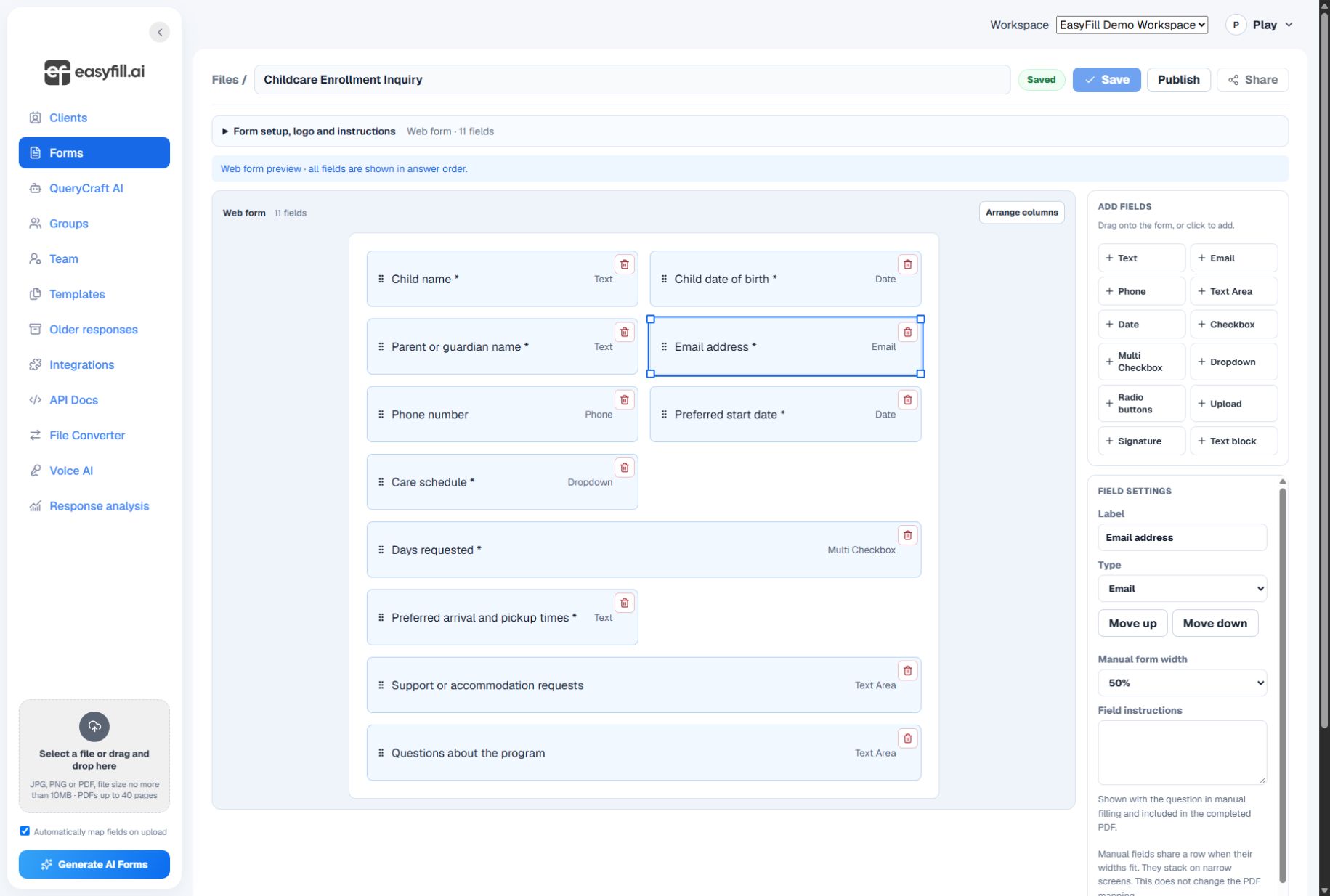
Open the form and choose Signature from the add-field tools. On a PDF, place and resize the field over the intended signing area without covering nearby instructions. On a digital form, put it after the acknowledgment it belongs to.
3. Add the date separately when needed
If the document has a separate Date signed line, add a Date field beside the correct signature. Check its label and required setting. A date printed in the document’s heading is not automatically a signing date.
4. Test the signing experience
Preview the respondent’s form on a phone and a desktop. Open the signature field and use the available drawing or typed-signature option. Check that the signature appears in the field after confirming it. Use fictional information for the test.
5. Review the completed document
Submit a sample, open Responses and download the completed PDF for a PDF-based form. Confirm that the signature and date are visible, correctly positioned and attached to the intended acknowledgment. Save corrections, publish and copy the current sharing link.
Quick troubleshooting
- Signature overlaps a line: adjust the field position and height, then test the downloaded result.
- Wrong person is asked to sign: correct the field label and whether it belongs in respondent or staff completion.
- Signature is missing from the completed PDF: check a fresh test response after saving the field and contact support with the form title if the issue remains.
Continue setting up your form
PDF field setup guide · Publish and embed guide · Open EasyFill